Choose Hybrid, Light or Dark
On this page
4Search comes in three colour themes: Hybrid, Light and Dark. You switch between them with one button, and the site remembers your choice in the browser you use.
#The three themes
Hybrid is the default, and what you see until you choose another. The header and menus are dark; the page content is light.
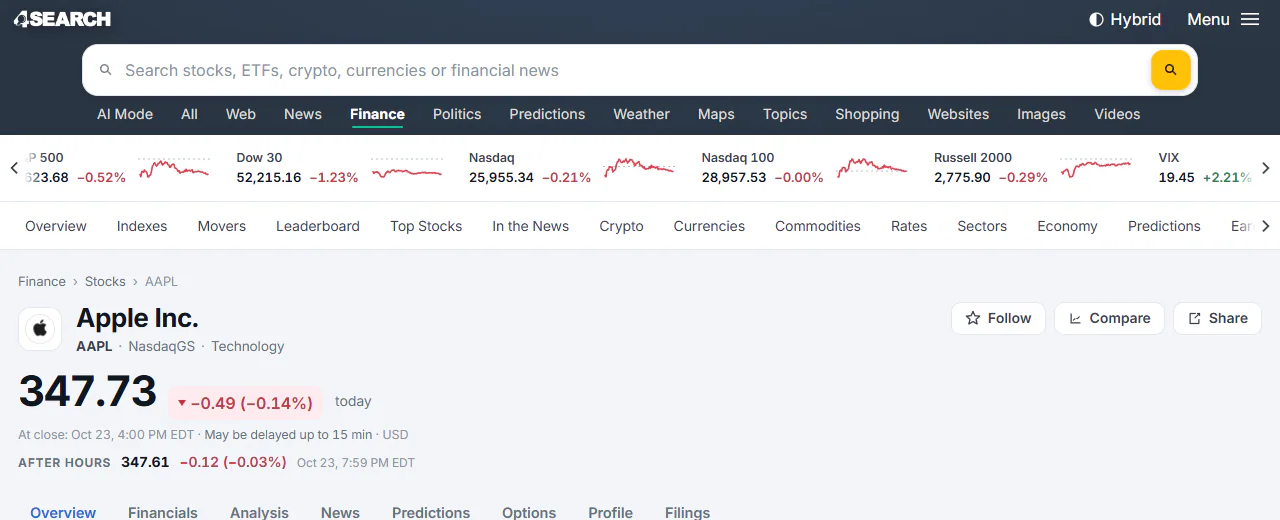
Hybrid: a dark header and menus around light page content.
- 1The button reads Hybrid
Light lightens the header and menus to match the content.
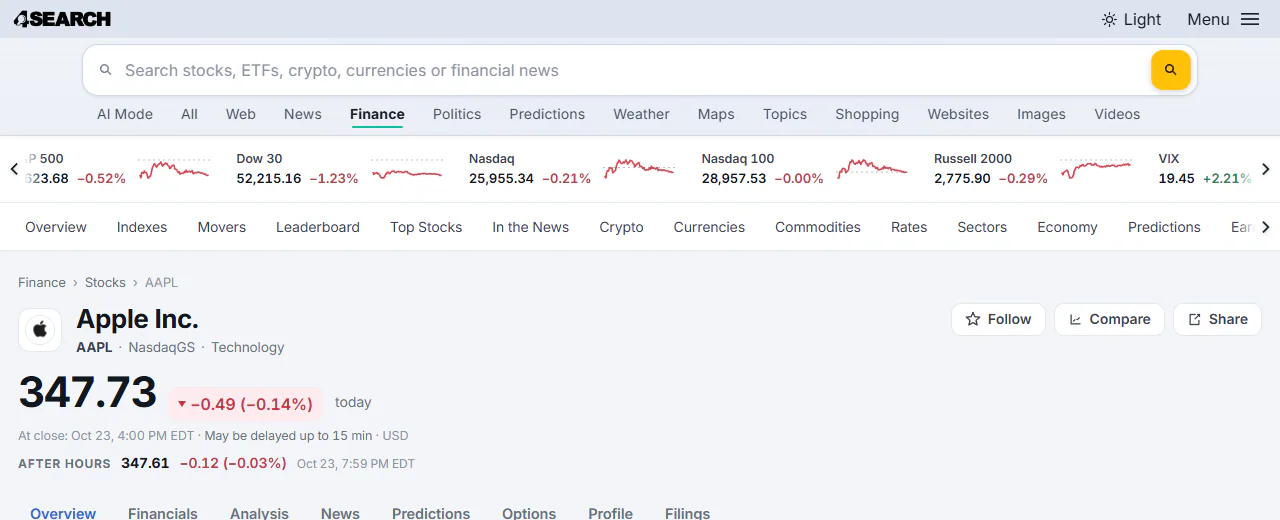
Light: a light header and light page content.
- 1The button reads Light
Dark darkens the page content to match the header.
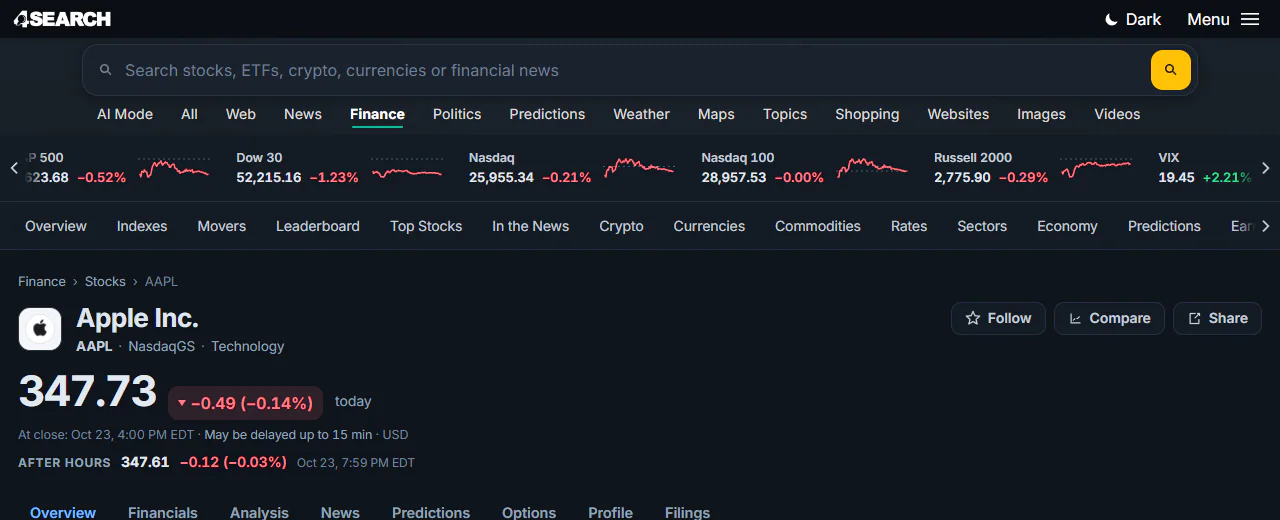
Dark: a dark header and dark page content.
- 1The button reads Dark
#Change the theme
-
Look at the top right of the page, beside Menu. The button shows the name of the theme you are using now: Hybrid, Light or Dark.

The theme button shows the theme in use and switches to the next one when you select it.
- 1The theme in use; select it to switch to the next one
- 2The Menu
-
Select the button. The page changes at once to the next theme in this order: Hybrid, Light, Dark, and then Hybrid again.
-
Keep selecting until you reach the one you want.
On a narrow screen, such as a phone, the button shows only its icon: a half-filled circle for Hybrid, a sun for Light and a moon for Dark.
#Pick a theme directly
The footer has a Colour theme chooser with three buttons. Use it when you want to go straight to one theme without cycling.

The footer's chooser: select Hybrid, Light or Dark.
- 1Choose Hybrid, Light or Dark
#How your choice is remembered
- In this browser. The choice is kept in your browser, so the site opens in the same theme next time. It is a display setting and does not need Saved preferences.
- For each site. Each site in the 4 Network is a separate website, so a choice you make on one does not change the others.
- In every tab. If you have the site open in two tabs of the same browser, changing the theme in one changes the other.
- Not on other devices. Your phone and your laptop each keep their own choice.
- Until you clear site data. If you clear the site's cookies and data, or use a private window that forgets it, the site goes back to Hybrid.
4Search does not change themes by itself when your device switches between light and dark mode. The theme you chose stays until you change it.
#Common questions
Does 4Search follow my phone's dark mode setting?
No. The theme changes only when you change it with the button or the footer chooser.
Why did my theme go back to Hybrid?
The browser forgot the choice. That happens when site data is cleared, when you use a private window, or when you open the site in a different browser. Choose your theme again. See My choices, followed items or settings are not remembered.
Is the theme saved in an account?
No. There are no accounts. It is saved in your browser only.
The header button shows a different word than I expected. What does it mean?
The word is the theme you are in now, not the one you will get. Selecting the button moves to the next theme.