Track a stock
On this page
This guide follows one company through Finance: you find it, read its page, look for the news behind a move, see what traders on prediction markets expect, and add it to your watchlist so it is waiting for you next time.
#Find the stock
-
Select Finance in the row of tabs at the top of the page.
-
Type the company's name or its ticker in the search box, for example
appl. Suggestions appear as you type.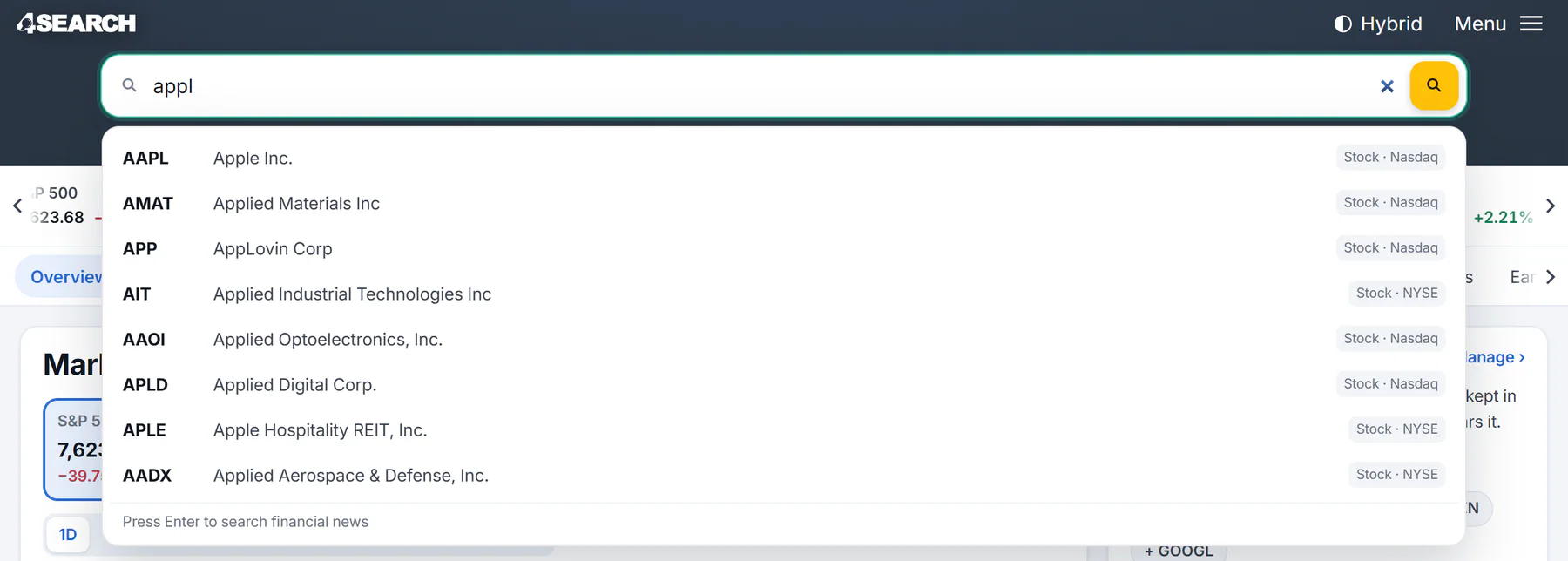
Each suggestion shows the ticker, the name, the kind of instrument and its exchange.
- 1Type a ticker, a name or a topic
- 2Choose a match to open its page
- 3Or press Enter to search financial news
-
Pick a suggestion, or press Enter. A name such as
appleor a ticker such asNVDAopens the company's page straight away.
See Search Finance for the other ways to write a name.
#Read its page
The top of the page gives the price, today's change and a time line. At close means the market has closed; As of means it is still trading. The price refreshes while the page is open, and it may still be up to 15 minutes behind the market (How fresh the data is).
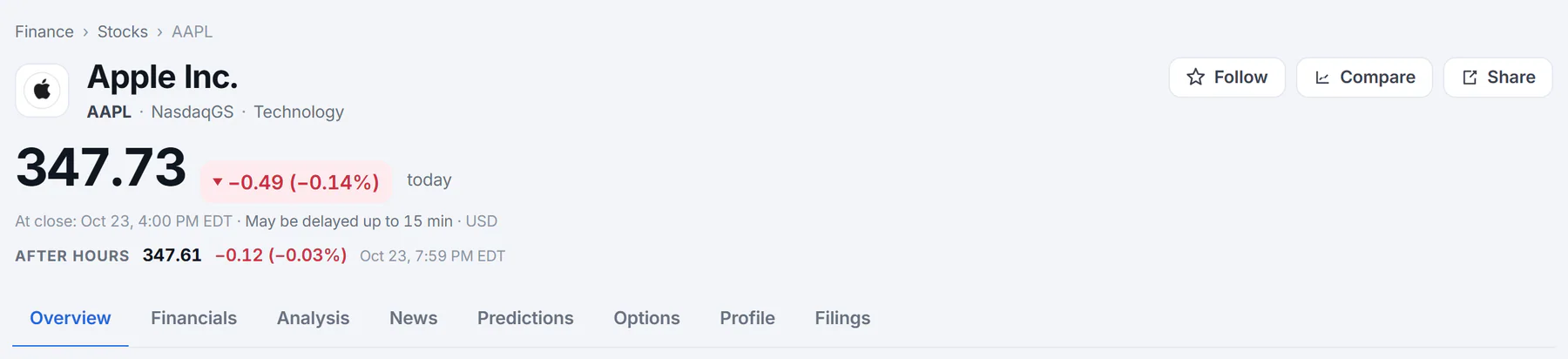
The name, the Follow, Compare and Share buttons, the price with its time line, and the tabs.
- 1Name, ticker, exchange and sector
- 2Follow, Compare and Share
- 3The latest price and today's change
- 4When the price is from, and the delay notice
- 5After-hours price
- 6The tabs of a stock's page
Below the top, the Overview tab holds the price chart, the key statistics and the stock beside its closest peers. A stock's page explains each part, and Key statistics, explained explains the numbers.
#Find the news behind a move
-
Scroll to Latest news. Each headline shows its outlet and age, and a Positive or Negative label where the tone is clear. Select a headline to read it on the outlet's site.
-
Look at In the news beside it: how many articles mentioned the company in the last 30 days, the tone of the coverage, and a chart of articles per day.
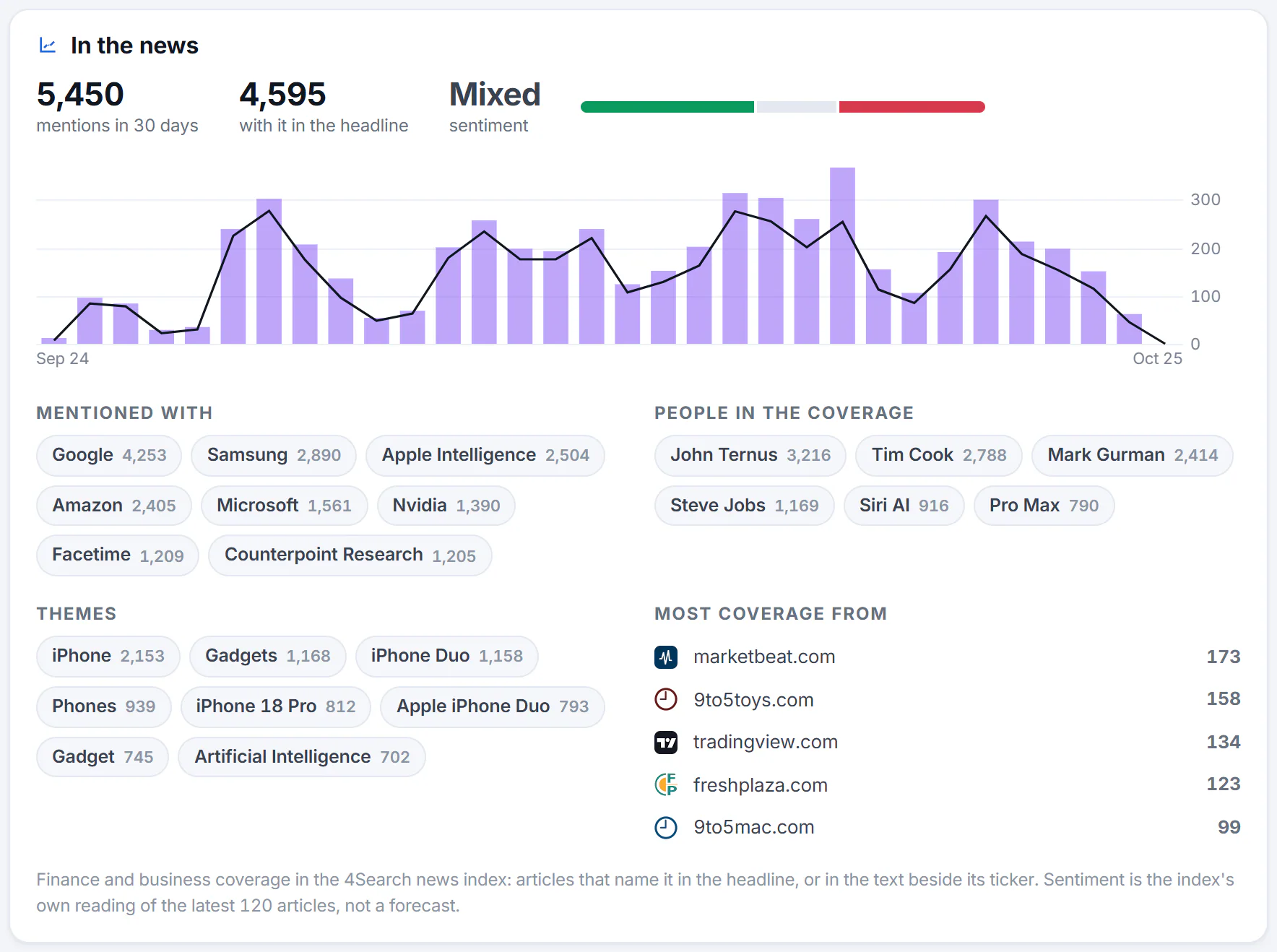
A tall bar on the day of a big move says the move came with a lot of coverage.
- 1How much coverage there is, and its sentiment
- 2Positive, neutral and negative articles
- 3Articles per day
- 4Names that appear in the same articles
- 5The outlets that wrote most
-
To line the coverage up with the price, open Indicators on the chart and tick News volume (4Search).
-
For more, open the News tab for 30 days of headlines, or select Full coverage on a story in a News search to see how other outlets reported it.
Sentiment describes the tone of what has been written, not what the stock will do. See News, coverage and sentiment and Check how a story is covered.
#See what traders expect
When prediction markets ask questions about the stock, its page has a Prediction markets card in the side column, and a Predictions tab once three or more markets are about it. In tables, a small Odds label beside a name means the same.
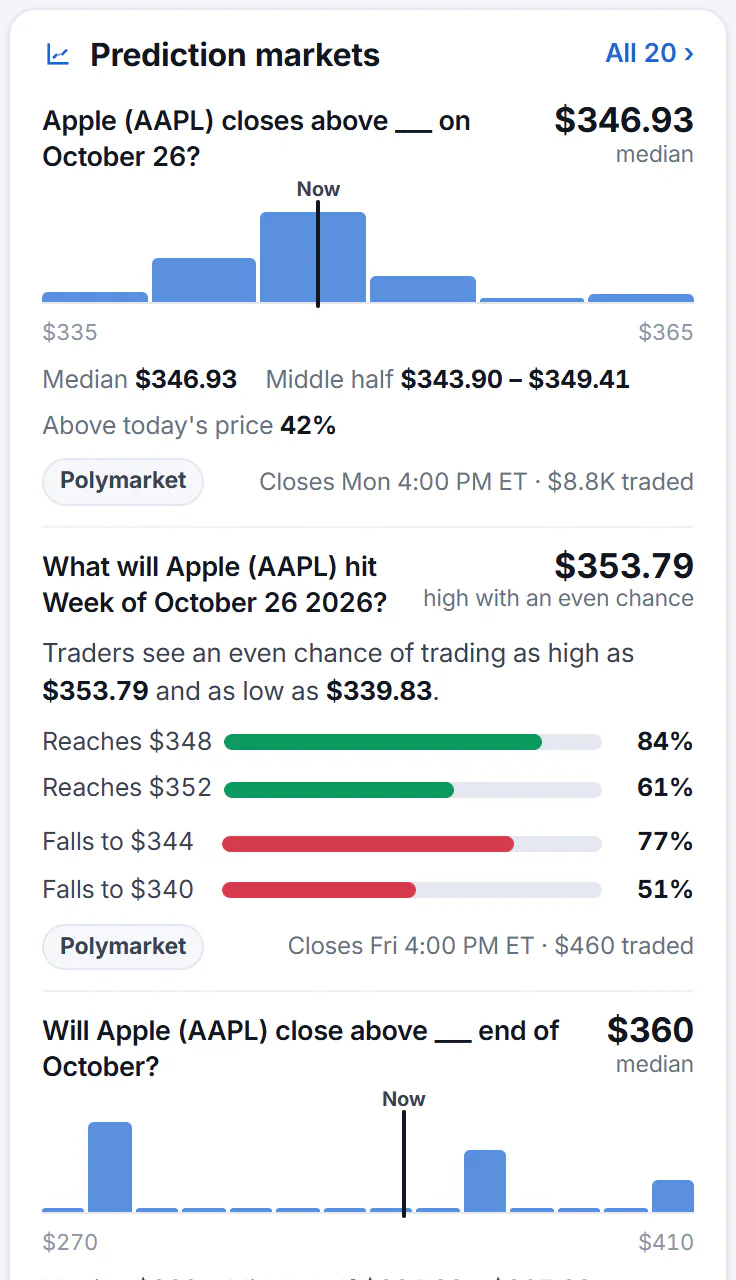
One market gives a median closing price; the other gives the chance of reaching each price.
- 1The headline number: a median price, or a chance
- 2Which venue the odds come from
- 3The chance of reaching each level
- 4All the markets about this stock
A card can give a median (the price traders see an even chance of being above or below) or the chance that the price Reaches or Falls to a level during the period. The venue, the closing time and how much was traded are under each card. Read Prediction-market odds, and for what odds can and cannot tell you, Read prediction markets.
#Keep it on your watchlist
- Select Follow at the top of the stock's page. The button changes to Following and a message says Added to your watchlist.
- The first time, a box explains that the list is kept in your browser. Select Enable cookies and follow to turn on Saved preferences and follow the stock, or Not now to save nothing.
- Open Watchlist in the Finance section bar to see everything you follow, with today's price, change and a small chart.
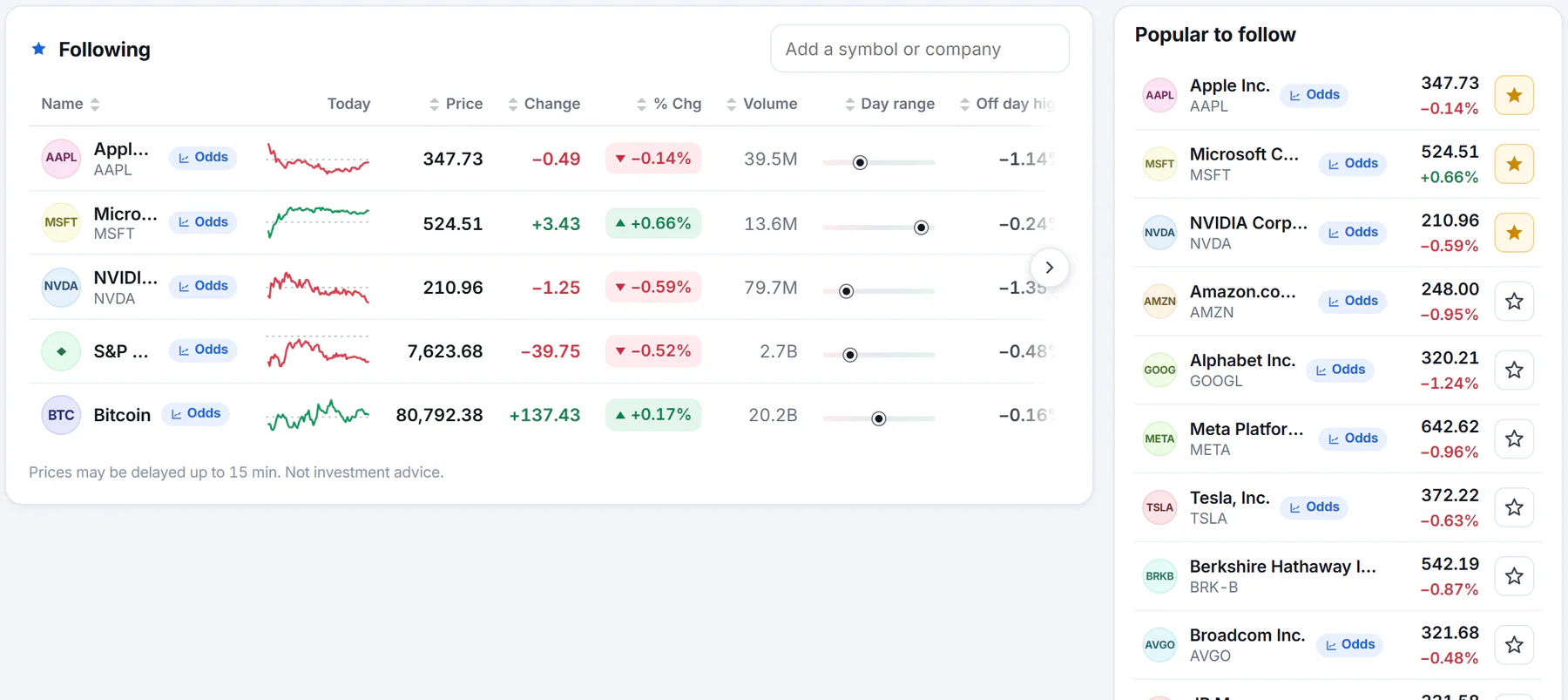
Newer additions come first, and any column heading sorts the list.
- 1Add a symbol or a company name
- 2Sort by any heading
- 3Select a name to open its page
- 4A filled star: already followed
You can follow up to 50 stocks, funds, indexes, currencies and coins. To see a few side by side, select Compare on a stock's page; see Compare stocks. More in Follow stocks and build a watchlist.
#Common questions
Will Finance tell me when my stock moves?
No. Finance does not send alerts or emails. Open your watchlist, or the Your watchlist card on the Finance overview, to see the latest prices.
Why is the price different from my broker's?
Finance may be up to 15 minutes behind, and brokers show the live price. Check the time line under the price.
Will my watchlist be on my phone too?
No. It is kept in the browser where you made it. Follow the same stocks again on your phone.